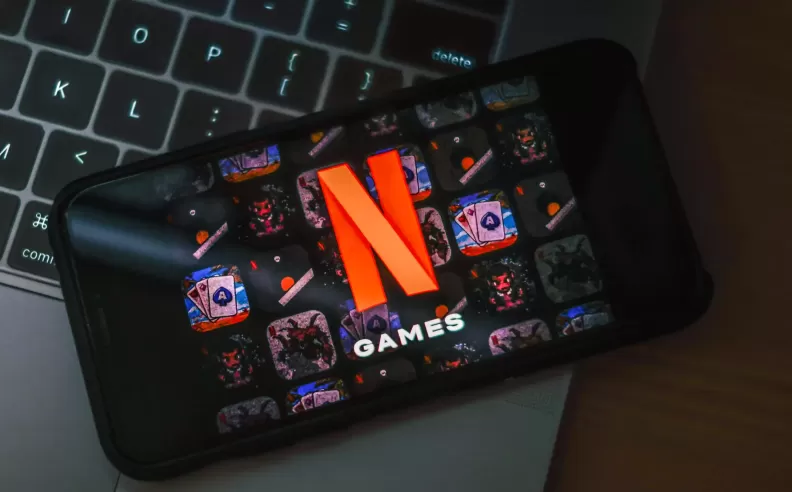
Netflix continues to expand beyond streaming by offering an easy, controller-free gaming experience designed for casual play on the big screen. Whether someone wants to compete with friends or relax with solo challenges, Netflix Games brings fun directly to the TV using the one device everyone already carries: their smartphone. This guide breaks down the essential steps to start gaming instantly and effortlessly.
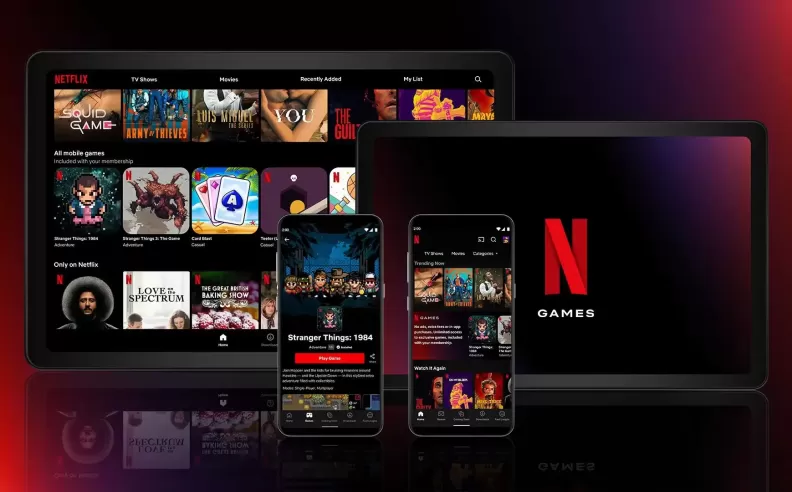
Netflix places its game selection in a dedicated Games row on the smart TV interface, allowing users to browse titles the same way they browse movies or series. After selecting a game, the Play Game button activates the setup, prompting the TV to pair with a mobile device. Following the onscreen instructions ensures smooth pairing, and the game launches once the phone or tablet connects successfully.
Netflix offers two categories of games: those designed for TV and browser play, and those built specifically for mobile devices. All titles are included within the user’s existing Netflix subscription with no hidden fees, ads, or in-app purchases. Players can explore the entire collection directly through the mobile Netflix app, making it easy to find titles that suit quick sessions or longer gameplay moments.
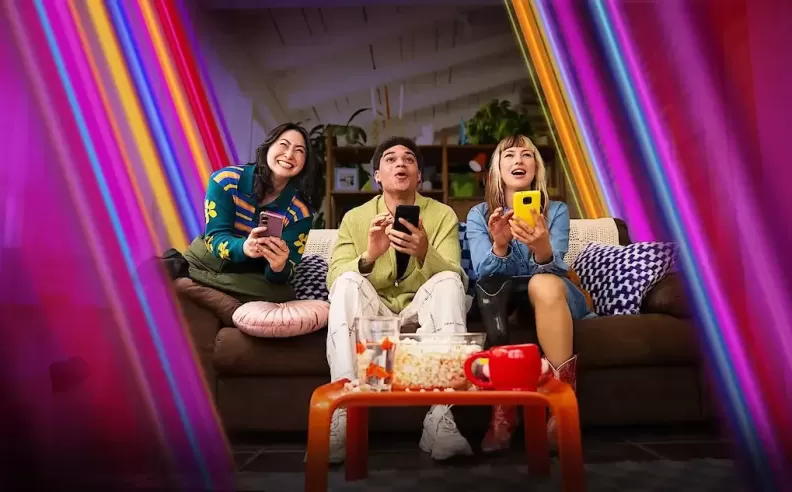
Android users can activate controller mode by selecting a game on the TV and scanning the displayed QR code with their device’s camera. The phone guides the user to open the link and install the Netflix app if needed. After scanning the QR code a second time, the phone links to the TV automatically and switches into controller mode, allowing the game to start instantly.
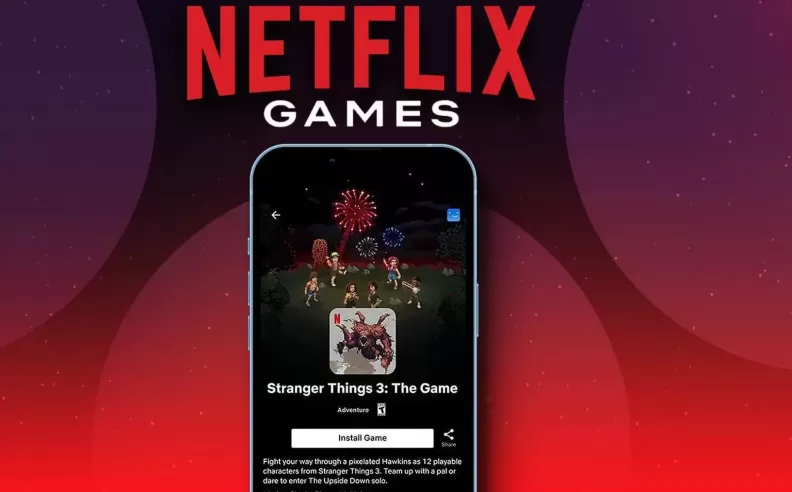
Apple devices follow an equally simple process. After choosing a game on the TV, the user scans the QR code with the iPhone or iPad camera. A Netflix controller prompt then appears on the screen, enabling the device to pair with the TV. Once the connection completes, the game launches and the phone becomes a responsive controller ready for gameplay.
Netflix streamlines the entire experience by removing the need for consoles, gaming hardware, or special controllers. The platform uses devices people already own, keeps the setup as simple as scanning a code, and offers a wide range of games for different play styles. This straightforward design makes hosting a spontaneous game night possible at any moment whether for competitive fun or relaxed entertainment with friends and family.

Started my career in Automotive Journalism in 2015. Even though I'm a pharmacist, hanging around cars all the time has created a passion for the automotive industry since day 1.





 SHARE
SHARE