Android Auto has become an essential companion for modern drivers, providing convenient access to Google Maps, music, phone calls, and messages directly through the vehicle infotainment system. However, unexpected disconnections and pairing failures can quickly disrupt the driving experience. Fortunately, many of these problems originate from faulty USB cables, outdated software, incorrect wireless settings, or compatibility issues rather than expensive hardware failures. Understanding the most common causes of Android Auto connectivity problems can help drivers restore the system without unnecessary visits to a service center.
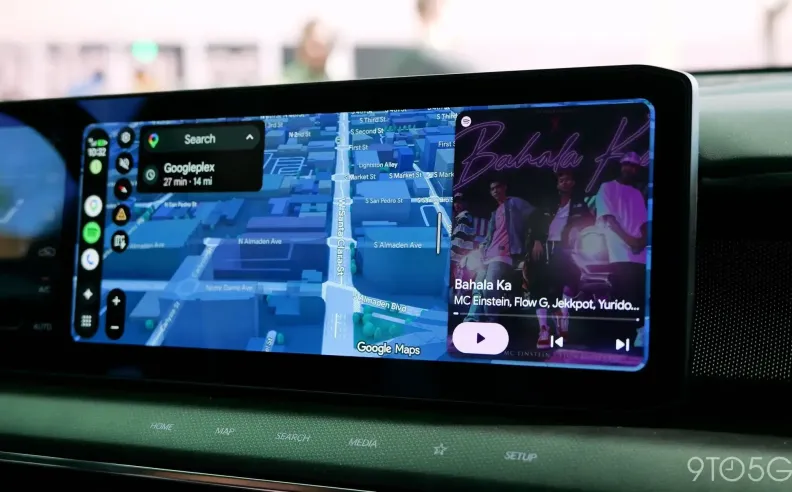
For drivers using wired Android Auto, the USB cable is often the first component worth checking. A damaged or poor quality cable may continue charging the phone while failing to maintain a stable data connection. Google recommends using a high quality USB cable shorter than one meter, preferably the original cable supplied with the smartphone if it supports data transfer. Drivers should also ensure they are using the correct USB port, as some vehicle ports are designed exclusively for charging. Beyond physical connections, outdated software can contribute to compatibility problems between the smartphone and the infotainment system. Keeping Android, Google Play Services, Android Auto, and the vehicle infotainment software updated can help prevent connectivity issues. If disconnections begin immediately after a software update, restarting both the smartphone and the infotainment system may resolve temporary conflicts. In some cases, however, a subsequent software update may be necessary to restore reliable functionality.
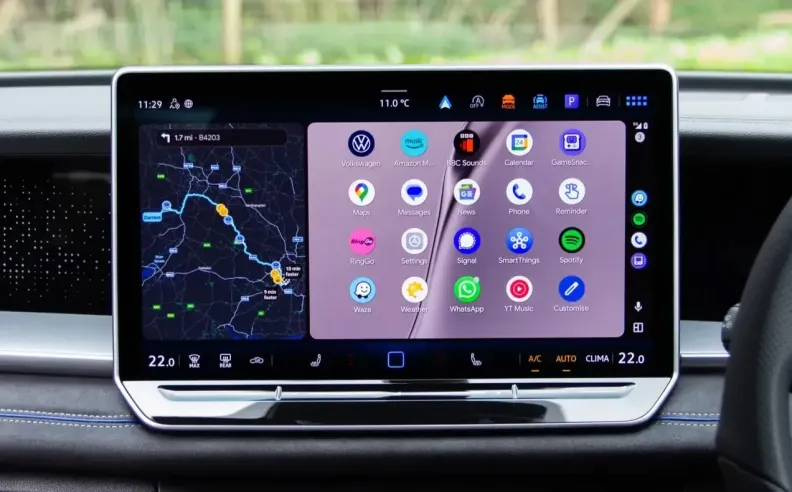
Wireless Android Auto relies on Bluetooth and WiFi to establish and maintain communication between the smartphone and the vehicle. Drivers experiencing frequent disconnections should ensure both features are enabled, along with location services during the initial setup. Removing existing Bluetooth connections and previously connected vehicles from the Android Auto settings before pairing again can also eliminate potential configuration conflicts. It is equally important to verify vehicle compatibility, as supporting wired Android Auto does not automatically mean the infotainment system supports wireless connectivity. Third party wireless adapters may also introduce additional connection problems. If these troubleshooting steps fail, testing another compatible smartphone can help identify whether the issue originates from the phone or the vehicle itself. Drivers should perform these checks while safely parked and contact the relevant manufacturer if problems persist, providing details about their smartphone model, Android version, vehicle model year, and connection method. By following these simple steps, motorists can often restore Android Auto functionality without complicated or costly repairs.

Started my career in Automotive Journalism in 2015. Even though I'm a pharmacist, hanging around cars all the time has created a passion for the automotive industry since day 1.


 SHARE